Patching fixtures
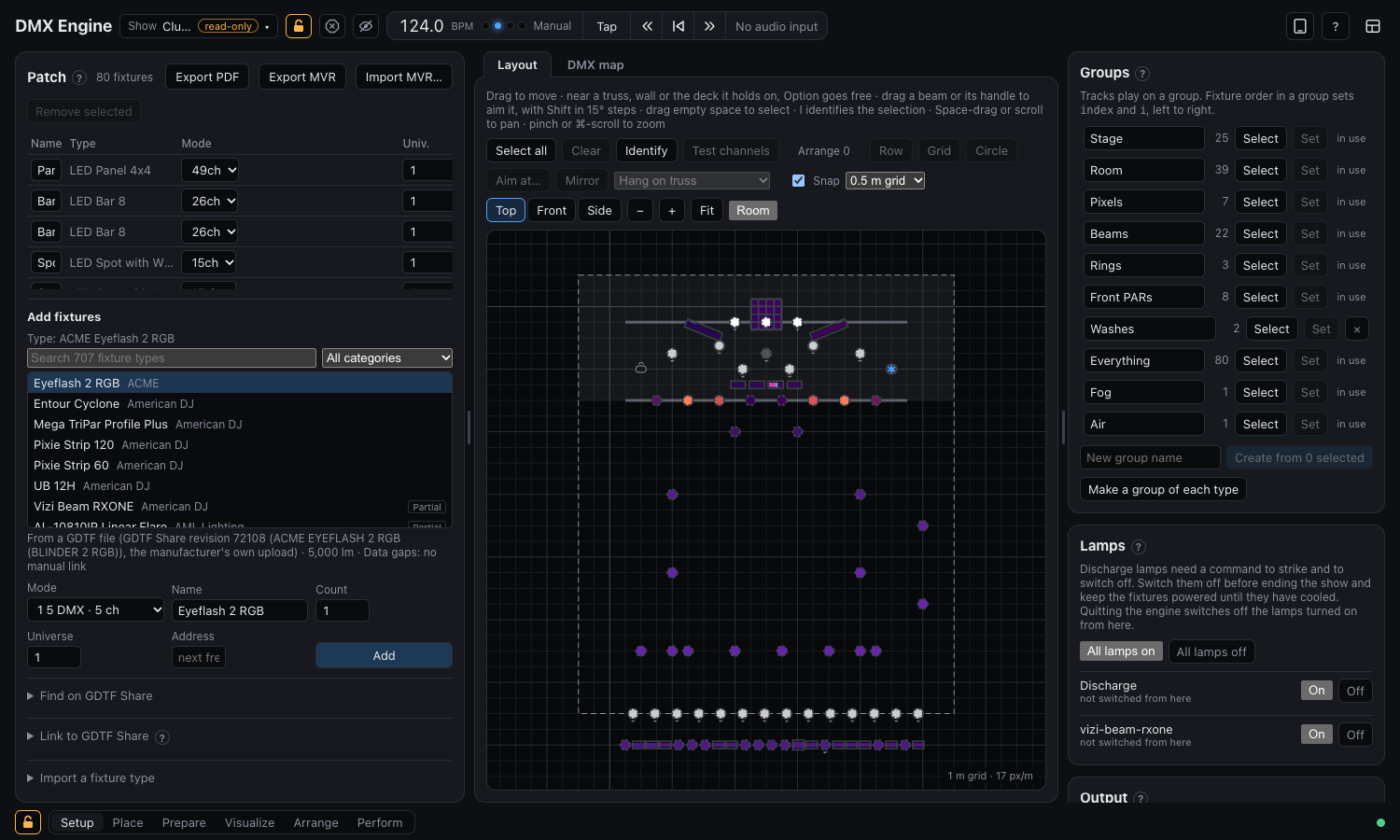
The Setup layout is where you build the rig. Its Patch panel lists every fixture with its type, mode, universe and DMX address. While editing is locked or in blind mode, Setup's panels stay on screen to look at but can't be used, because they work on the real lights.
Add fixtures
Click Add fixtures. The picker searches about 660 fixture types by manufacturer and name, and you can narrow it by category.
- Our own profiles come first. They were checked against manuals or the fixtures themselves, or converted from the manufacturers' GDTF files. Those say From a GDTF file and haven't been checked channel by channel.
- The rest come from a bundled copy of the Open Fixture Library and are marked OFL. The community made them and nobody has checked them on the fixture, so try one with Test channels before a show. Channels the engine doesn't drive yet stay at their default value. Where a profile gives a range for a function (a wheel slot, a stop, a preset), the engine sends the range's first value, because profiles often give wider ranges than the fixture really has.
Badges in the list say how far to trust a type. Tested ones were tried on the real fixture. Partial ones have channels the engine doesn't drive yet, which stay at their default value. Hover over a type, or look below the list once it's chosen, to see what it was checked against, which channels aren't driven, and what its profile leaves out, such as a beam angle the 3D stage would use or pictures for its gobos.
Pick the mode your fixture is set to, and how many to add. A fixture that is missing or newer than the bundled library can be added with Import a fixture type from an OFL file or a GDTF file (.gdtf, as manufacturers publish on GDTF Share). A GDTF file brings its gobo pictures, and says below the file if a mode couldn't come across, such as one that needs two DMX universes. An imported profile replaces a library one with the same key.
Find on GDTF Share fetches GDTF files without leaving the app. Sign in with your own GDTF Share account (free at gdtf-share.com); the engine signs in for you. With Remember on this computer ticked (it is by default), the engine keeps your user name and password in the computer's password store (the Keychain on a Mac; macOS may ask once whether the app may use it) and signs in again by itself, after GDTF Share ends a session (about two hours unused) and after the engine restarts; remembered beside your name says it will. Sign out forgets them, and so does a password GDTF Share no longer accepts. Untick it to keep only the session, until GDTF Share ends it. Search by manufacturer or fixture: files the manufacturer uploaded come first, marked Manufacturer, then the newest. Get downloads one and puts it in Import a fixture type, where you check the library key and import it. Importing it also links the type to that revision on GDTF Share, mode by mode, once the engine has checked that each mode's channels line up with the file's; the message after importing says so, or which modes didn't. The engine keeps the downloaded file, so it isn't fetched again. Sign in from the computer running the engine, or over a network you trust: the password travels from the browser to the engine like the rest of the app's traffic. Signing in from a tablet keeps the password on the computer running the engine, never on the tablet, and the engine never sends it back.
Link fixtures to GDTF Share
A fixture type linked to its GDTF file on GDTF Share can later be exported with the manufacturer's own file, 3D model and all, for a visualizer such as BlenderDMX. Link to GDTF Share, below Find on GDTF Share, lists the types in the patch and how each is linked; tick Whole library to see every type, and type in Filter to find one.
- Linked types have every mode the patch uses linked to a mode of the file. Linked, but not … names a mode in use that isn't.
- To check types came from GDTF Share, so the revision is known, but the engine hasn't compared it yet. Check compares one; Check all compares each in turn.
- Not linked types have no file yet. Find… searches GDTF Share for the fixture. Results with a mode the same size as one of yours are marked fit and come first. Check compares one with your type.
The engine links a mode only when the file's mode has the same channels in the same order, each controlling the same thing, so the file never sends a fixture the wrong channels. It doesn't compare DMX ranges, which manuals often correct. After a check, each mode says which of the file's modes it matches, or how the nearest one differs ("Channel 7 is strobe here and gobo rotation in “Extended”"). A channel only one side drives still lines up, and is listed. Checking downloads the file the first time, so it needs you to be signed in under Find on GDTF Share; the engine keeps the file for next time. Linking changes the library, so it needs editing unlocked.
Universe and address
Each fixture has a universe and a starting channel. The DMX map (next to Layout above the stage) shows each universe's 512 channels with the fixtures on them, colored by type; channels two fixtures share are hatched.
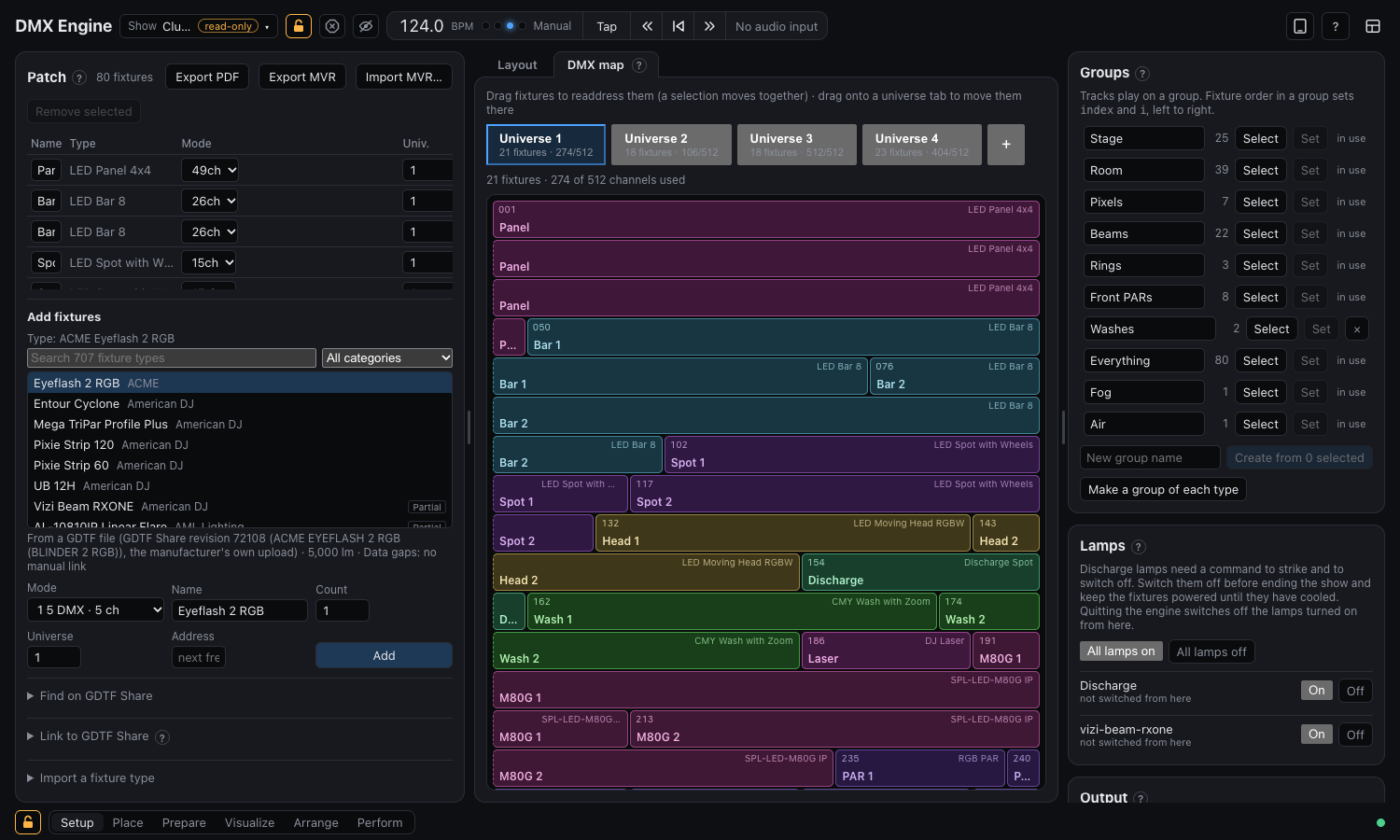
- Drag a fixture to move it to another address. A selection moves together.
- Drag it onto another universe's tab to move it there. + adds an empty universe.
- Fix overlaps moves colliding fixtures to the first free channels.
Each move is one undo step.
Check a fixture
- Identify (the I key, or Identify in the Layout view) lights the selected fixtures white at full, with gobos, prism and strobe cleared. It follows the selection, so you can click down the patch and see each fixture light up in the rig. It ends with I again, Release, switching to a layout without Rig layout, or closing the window.
- Test channels lists the selected fixtures' DMX channels and what each is getting now. Move a slider (or type a value) to hold that channel at a raw value over the show, which is how you find out what an undocumented channel does. × or Release all gives channels back; closing the tester or switching away from Patch releases them all. Several fixtures can be tested together when they share a type and mode.
Even out brightness
The Bright. column is the percentage of its output a fixture gets, after the layers and the grand master. A strong discharge lamp can sit at 40 % next to LED bars. All gives every fixture of a type the same trim in one undo step, and changing the trim of a selected fixture scales the whole selection by the same ratio. A trim only turns fixtures down, so match the rig to its dimmest type. Identify still lights a fixture at full, for comparing.
Lamps
When a patched fixture has lamp commands, the Lamps panel lists it. On and Off (and All lamps on / All lamps off) send the fixture's strike or switch-off command for as long as its definition says it must be held, then give the channel back to the show. Each row shows what was sent and when, with a reminder that most lamps can't restrike while hot.
Lamp commands work while editing is locked and from blind mode. When you quit, the engine first switches off the lamps it turned on and waits for the hold. Keep the fixtures powered until they have cooled.
Print the patch
Export PDF makes a printable A4 patch sheet sorted by universe and channel: names, types, modes, channel ranges and groups, with overlap warnings. The desktop app saves it in Downloads; a browser uses its usual download place.
Export for a visualizer
Export MVR saves the rig as an MVR file (My Virtual Rig), which visualizers such as BlenderDMX, Capture and consoles' 3D views open: every fixture with its name, universe and address, where it hangs on the layout and at what height, and which way it faces. Point the visualizer's sACN or Art-Net input at the engine's output and it plays the show live.
Types linked to GDTF Share bring the manufacturer's GDTF file, with its 3D model, pan and tilt, colors and gobos; the engine downloads any it hasn't kept yet, which needs you signed in. For every other type the engine writes a GDTF file from its library definition: the same channels, in simple shapes (a base, yoke and head for a moving head, a box for a par, a beam per pixel for a bar or panel, at its width on the layout), with its color and gobo wheels, prisms, strobe and zoom; after exporting, the Patch panel says which fixtures got one. Exporting the same show again keeps each fixture's identity, so a visualizer that imports it again updates the fixtures it has.
A head's pan home turns its body, so it faces its front at home, counting pan from the middle of its range; its tilt home doesn't, and neither the room, the stage deck nor the trusses go into the file yet. Files made from the library have no gobo pictures.
Import a rig
Import MVR… in the Patch panel reads an MVR file, from a lighting designer's plot, Vectorworks, Capture or a visualizer such as BlenderDMX, and shows what it would patch before changing anything:
- Each fixture type in the file and the library type it becomes. A type is matched when one of its modes has the same channels as the file's: one linked to GDTF Share, a file this app exported, a type imported from the same GDTF file, or the library type with the same name. Any other is imported into the library as a new type; its key can be changed, and the dialog says when it would replace a type you have. Untick a type to leave its fixtures out.
- The fixtures: each with its name (and its number on the plot, when the file's fixtures are only named after their type), universe and address, where it hangs and at what height, and which way it faces, mounting, lean and roll included. A bar or panel whose type says how big it is comes in at that width, with its pixels laid out as on the fixture, unless you've already given it a width of your own. Fixtures without an address in the file get the next free ones.
- Groups: one for each hang position in the file (a truss or pipe the designer named), and one for each layer when the fixtures are in more than one. A group your show already has by that name gets the fixtures instead. Untick it to bring in the fixtures alone.
- The room, when your show has one that's too small for the rig: Make the room bigger moves out the walls and ceiling that fixtures or scenery would be beyond, and leaves the rest of the room, its stage deck and its trusses as they are. A show without a room stays without one.
- Fixtures it can't patch, with why: one without a GDTF file, or one that spans several DMX universes, which you can patch in parts as fixtures of their own.
Add to the patch keeps what's patched; Replace the patch unpatches what the file doesn't have. Either way, a fixture the file already knows (one imported from it before, or one this show exported) is updated in place: it keeps its groups, brightness trim and inverted pan and tilt, and if the file hasn't moved it, where it is. So you can import a revised plot again, and export and import through a visualizer without losing anything. The whole import is one step to undo.
A head is turned so it faces the way the file has it at pan home, with pan home in the middle of its range unless it already had one of its own. Its set pieces, trusses, supports, screens and projectors come in as scenery on the 3D stage, with their 3D models (glTF or 3DS); untick them in the dialog to leave them out. The room and stage deck in the file don't become the show's room, and its trusses aren't ones fixtures hang on yet.